Beginning Graphics
Up until now, our programs did output by printing characters to the monitor. Programs can also output graphics to the monitor. This chapter discusses ways to draw simple pictures on the monitor screen.Chapter Topics:
-
SCREENstatement -
COLORstatement -
PSETstatement -
LINEstatement - The graphics screen
- Pixels
- Arithmetic and graphics
- Variables and graphics
-
CIRCLEstatement -
INPUTand graphics
SCREEN 12This
SCREEN statement says we want to use
graphics in "mode 12."
There are about 13 modes.
Most modes are for older computers
and are of no interest to us.
QUESTION 1:
Do you think that your computer has graphics hardware?
SCREEN Statement
Read this entire page before entering and running the
example program.A program must have a
SCREEN statement
before
it does any graphics.
A computer that is more than fifteen years old might need to
use one of the older SCREEN modes.
We will always use SCREEN 12.
Here is a graphics program
which puts one spot on the
monitor screen.
To be safe,
close down any other programs you have running
on your computer before you run this one.
'Put a spot on the screen at column 30 row 50
SCREEN 12
PSET (30, 50)
END
When you run the program, the QBasic system starts up the graphics hardware and a graphics screen will appear on your monitor. This screen is a temporary replacement for the screen that you usually see on your monitor. You should see a small spot close to the upper left of the monitor screen.

Hit any key to continueHit some key (like "enter") and you will go back to the QBasic screen which shows your program. However, the QBasic screen will now completely fill the monitor screen.
To return to the normal Screen:
To get back to the usual situation where QBasic fills just one window on the screen, do this:- Press and hold down the keys
<alt><enter>(press the "Alt" key, keep holding it down, and press the "enter" key). - You should be back to the normal screen. If not,
click the mouse in the screen and repeat
<alt><enter>
.
QUESTION 2:
What is wrong with the following program?'Put a spot on the screen at column 30 row 50 PSET (30, 50) SCREEN 12 END
PSET
Here is the correct version of the program:
'Put a spot on the screen at column 30, row 50
SCREEN 12
PSET (30, 50)
END
The
SCREEN statement starts up the graphics hardware
so that now other graphics statements can be done.
The
PSET statement stands for Pixel Set.
A pixel is a dot on a computer graphics
screen.
Pixel stands for picture element.
"Set" means to "turn on,"
so this statement turns on one dot on the screen.
All computer graphics pictures are made of thousands
of pixels.
The PSET statement looks like this:
PSET (column, row)Column and row can be numbers or variables. The part of the statement
(column, row) says where
on the graphics screen to set the pixel.
QUESTION 3:
Look at the following piece of graph paper. What is the column and row number of the square with the X?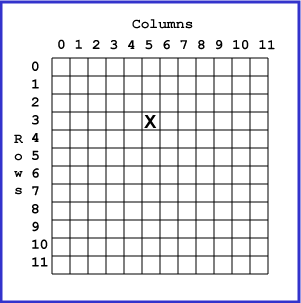
Columns and Rows
Here is that graph paper again, now with more squares marked:The position of each square is given by its column number and row number. For instance, the square with the # is column=1 row=5. The square with the $ is column=5 row=1. Notice that you have to be careful to get column and row in the right order.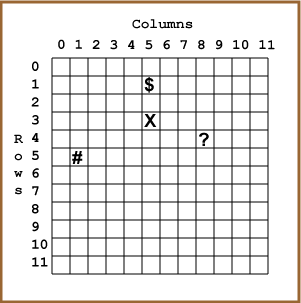
QUESTION 4:
What is the column and row of the square marked with ?X and Y
People usually talk about places on the computer graphics screen as "X and Y" rather than "column and row."Here is the graph paper again, but now the sides are labeled "X" and "Y":
X starts at zero on the left and increases to the right. Y starts at zero at the top and increases going down (this is unlike graphs in math books where Y usually increases going up).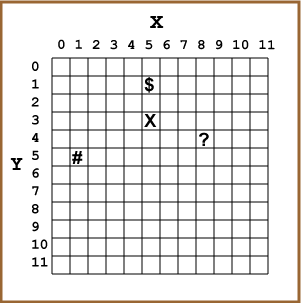
QUESTION 5:
What are the X and Y values of the squares marked with *, #, $, and ?The Computer Graphics Screen
Remember theSCREEN statement:
SCREEN 12This sets up the graphics hardware and selects mode 12. Selecting mode 12 is like selecting a sheet of graph paper. When you select mode 12 you get:
- A range of X from 0 to 639.
- A range of Y from 0 to 479.
- 16 possible colors for pixels.
With 640 columns and 480 rows you have 640 times 480 squares on the graph paper. Or, there are
QUESTION 6:
Write a QBasic program that sets the pixel at X = 150, Y = 32.Setting Many Pixels
If you want to make a longer program you can start with the above program and used the "Edit" menu and the mouse to "copy" and then "paste" copies of thePSET statement:
'SET A PIXEL AT (150, 32)
'
SCREEN 12
PSET (150, 32)
PSET (150, 32)
PSET (150, 32)
PSET (150, 32)
PSET (150, 32)
PSET (150, 32)
PSET (150, 32)
END
So far this is not an improvement, since the new program just sets the same pixel over and over. But now you can use the mouse to go to various characters, remove them with the delete key and then type in new values:
'NEW PROGRAM BASED ON THE OLD
'
SCREEN 12
PSET (150, 32)  ' set X = 150  Y = 32
PSET ( 50, 30)  ' set X =  50  Y = 30
PSET ( 75, 42)
PSET ( 25, 72)
PSET ( 10, 90)
PSET (  0,  0)
PSET ( 13,  5)
END
The new program sets seven different pixels. Usually you do not set pixels one by one like this; better ways to draw pictures will be described later.
QUESTION 7:
Many recent movies, such as Toy Story have been made with computer graphics. The computers that were used cost hundreds of thousands of dollars. How do you suppose the graphics screen on those computers compares to the graphics screen on ours?
The COLOR Statement
Even though the computers used for Toy Story were much more
expensive than ours,
their computer graphics is fundamentally the same as ours:
- The graphics screen looks like graph paper.
- Each square of the graph paper (a pixel) has X and Y coordinates.
- Each pixel is set to a color.
- Digital images are made by setting the color of each pixel.
' Setting pixels to color 4
SCREEN 12
COLOR 4
PSET (3, 3) ' set column 3 row 3
PSET (7, 3) ' set column 7 row 3
PSET (7, 7) ' set column 7 row 7
PSET (3, 7) ' set column 3 row 7
END
If you run this program you will get four red dots in the upper left corner of the screen. The
COLOR 4 statement picks the color to use (out of the 16 available.)
It is like picking a colored pencil out of a box.
Now four pixels are set (with PSET) to color 4.
Here is what the picture will look like:
Here is what it looks like on the graphics screen: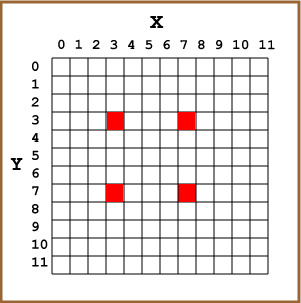
(This picture has been enlarged to show the four tiny pixels.)
QUESTION 8:
Are red pixels easier to see than white pixels?The
COLOR statement looks like this:
COLOR C      ' C is a color number,
             ' for screen 12 it is 0 up to 15.
Here is a list of numbers and colors.
This list works for screen 12 and some
others (but not all screens).
| Color Number | Color | Color Number | Color |
|---|---|---|---|
| 0 | Black | 8 | Gray |
| 1 | Blue | 9 | Light Blue |
| 2 | Green | 10 | Light Green |
| 3 | Cyan | 11 | Light Cyan |
| 4 | Red | 12 | Light Red |
| 5 | Magenta | 13 | Light Magenta |
| 6 | Brown | 14 | Yellow |
| 7 | White | 15 | Bright White |
QUESTION 9:
What will the following program show on the graphics screen?' Setting pixels to color 2 (Green) SCREEN 12 COLOR 2 PSET ( 1, 3 ) ' set column 1 row 3 PSET ( 3, 3 ) ' set column 3 row 3 PSET ( 5, 3 ) ' set column 5 row 3 PSET ( 7, 3 ) ' set column 7 row 3 ENDTry to make a sketch of your answer on a piece of scrap paper.
Lines
In computer graphics, a line is made by setting many adjacent pixels to the same color. You could draw a line by using thePSET statement many times.
But there is an easier way.
To draw a line of pixels all of the
same color use the LINE statement:
LINE (startX, startY)-(endX, endY)This statement:
- Uses the current pen color.
- Sets all the pixels along a line starting at (startX, startY) and ending at (endX, endY)
- If a pixel along the line has already been set, it is set to the current pen color.
LINE statement:
' Setting 10 pixels in row 3
' to color 4 (Red)
'
SCREEN 12
COLOR 4
LINE (1, 3) - (10, 3) ' draw a line from (1,3) to (16,3)
END
The program is much shorter than the one that uses
PSET.
The picture on the graphics screen will look like this
(slightly enlarged):

QUESTION 12:
The upper left corner of graphics screen 12 is (x=0, y=0); the lower right corner of the screen is (x=639, y=479). Write a program that draws a red diagonal line from the upper left corner to the lower right corner.Several Lines
The image will look like this (in this picture, the size of the graphics screen has been made much smaller and the line has been made thicker):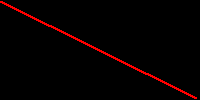
'
' Small Red Square
'
SCREEN 12
COLOR 4
LINE (1, 1) - (1, 10)   ' Left side of square
LINE (10, 1) - (10, 10) ' Right side of square
LINE (1, 1) - (10, 1)   ' Top side of square
LINE (1, 10) - (10, 10) ' Bottom of square

END
On graph paper, the square looks like this:
Of course, on the actual graphics screen the red square is much smaller.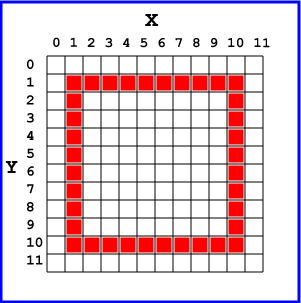
QUESTION 13:
Modify the above program so that it draws the same square, but now:- The top and bottom line of the square are red (color 4)
- The left and right line of the square are yellow (color 14)
Painting Over Pixels
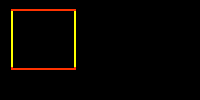
Now the square looks like:Since the red lines were drawn last, the corner pixels like (1, 1) and (10, 10) are drawn with red. Here is an enlarged view of the upper left corner of the graphics screen: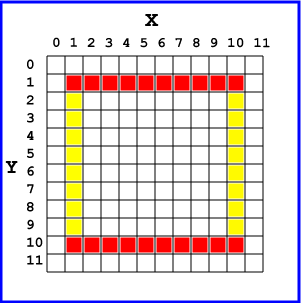
QUESTION 14:
Is it critically important what color the corners are?Changing Color
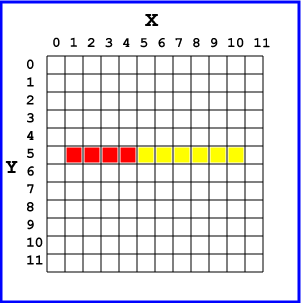
With computer graphics, when you set a pixel to a color, its previous color is completely gone. You can't mix colors by setting a pixel to several different colors. Here is a program that draws a red line from (1, 5) to (10, 5), then draws a yellow line from (5, 5) to (10, 5). The second line will over-paint half of the first line.'
' Two-tone Line
'
SCREEN 12
COLOR 4 ' Pen color 4 (red)
LINE (1, 5) - (10, 5) ' Horizontal red line in row 5
' starts in column 1 goes to column 10
COLOR 14 ' Pen color 14 (yellow)
LINE (5, 5) - (10, 5) ' Horizontal yellow line in row 5
' starts in column 5 goes to column 10
' replaces part of previous line
END
QUESTION 15:
Did the two colors blend together?Jagged Lines
This is not actually a good way to draw things. Usually you don't want to change the color of pixels you have already painted, except for the pixels at the corners of figures that have been painted in several colors.Say you wrote a program to draw a line from (x=0, y=3) to (x=11, y=6):
' Diagonal Line
'
SCREEN 12
COLOR 4                ' Pen color 4 (red)
LINE (0, 3) - (11, 6)
END
The program will fill in the start and end pixels with red and fill in the pixels in-between. But the line will not be smooth because sometimes there will be abrupt changes between one red pixel and the next:
You can't get a smooth line because a pixel is like a square of graph paper that is either completely filled with one color or completely filled with another.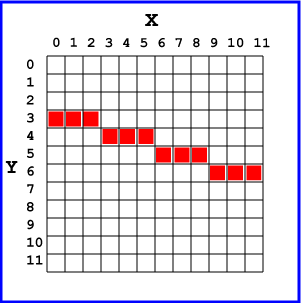
With less expensive computer graphics, diagonal lines can be very jagged. Sometimes in newspapers and magazines you can tell when a picture has come out of a computer because of its rough, grainy appearance. Here are some magnified jaggy lines on part of a graphics screen:

QUESTION 16:
You are having problems with jagged, grainy graphics on your computer. Will buying a bigger monitor help?Circles
Circles are important in drawing pictures. The statement to draw a circle is:CIRCLE (centerX, centerY), RadiusIn the CIRCLE statement:
- the center of the circle is
(centerX,centerY) - the radius of the circle is
Radius centerX, centerY,andRadiuscan be numbers or variables- the circle is drawn with the current pen color
Here is a program to draw a circle at the center of the screen:
' Draw a circle at the center of the screen
SCREEN 12
COLOR 7
CIRCLE  (320, 240), 50
END
There are 640 columns across, so the middle of the screen for X is 320. There are 480 rows down, so the middle of the screen for Y is 240. The picture will look something like this:


No hay comentarios:
Publicar un comentario